Showing posts with label Messier objects. Show all posts

Thursday, January 18, 2018

Messier 78

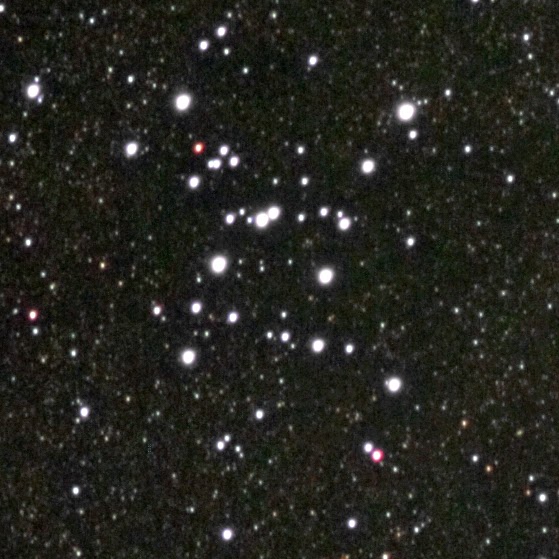
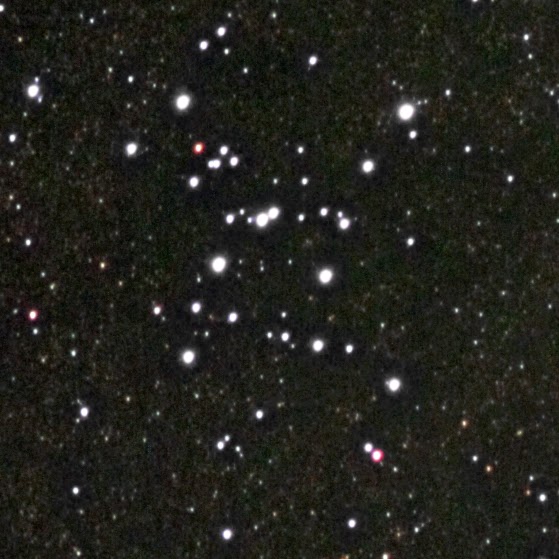
Messier 78 is a reflection nebula in the Orion constellation. I have always found it a difficult object to image due to its intrinsic visual properties and the sheer bad luck I sometimes have with equipment and weather.

I think that a good, detailed image of this nebula can only be attained using a specialized CCD astroimaging camera, a long focal length scope, and a mount that can perform accurate tracking for long periods of time. I have none of these, but overall I'm fairly pleased with this image.

If you are viewing this on a laptop screen, phone, or tablet, then it is likely that you are going to miss a lot of the details in this image. The main part of the nebula is relatively faint, but the surrounding nebulosity is VERY faint. In fact, it is practically invisible as it absorbs nearly all of the light from the stars in and behind it. Examine the image. Where you don't see stars: that's the nebula. Pretty spooky, huh?

Messier 78
If your monitor brightness is fairly high, then you might see a splash of red on the lower-left corner. That is a portion of Barnard's Loop.

Exposure: 42x120@ISO1600
Telescope: AT72EDII
FF/Reducer:  ATR8 (f/4.8)
Mount: Vixen Super Polaris
Camera: Canon EOS Rebel T3
Processing: Deep Sky Stacker, Photoshop CS6

Sword of Orion, Again

Edit:  I originally posted the wrong image to this article. It was corrected on May 6, 2018.

If you have been following this blog for very long, you probably more than suspect that the Sword of Orion is one of my favorite targets. You would be right! I think it is a beautiful group of nebulae, and it is a fun and challenging object to image and process.

The sky conditions were almost perfect about a week ago, so I decided to try the new AT72EDII on the Sword. The results were superior to my previous attempts. I really like this little scope!

Sword of Orion
Click here for full size.
A 1920x1080 wallpaper version is available here.

Exposure: 23x120+12x60+12x30+8x15+8x4+8x2+1x1+1x0.5@ISO1600
Telescope: AT72EDII
FF/Reducer:  ATR8 (f/4.8)
Mount: Vixen Super Polaris
Camera: Canon EOS Rebel T3
Processing: Deep Sky Stacker, Photoshop CS6

Yes, I really did shoot all of those different exposure times. I was trying to capture the detail all the way down to the Trapezium Cluster. It was only marginally successful. I think I was pushing the limits of the scope, camera, and mount.

Saturday, December 9, 2017

First Light - AT72EDII

Wow! This little scope is a major step up from the ST80.

There is a lot that I want to cover in this post, so bear with me, please. If you're just here for the pictures, then skip down a bit.

The AT72EDII is an air-spaced doublet refractor with an FPL-53 element. The lenses are made by Ohara. The FPL-53 lens makes a huge difference in correcting chromatic aberration, rendering sharper images with much more realistic colors--closer in hue to those that I have gotten from the Epsilon-200. In comparison, I thought the colors I was getting from the ST80 were somewhat "cartoonish," even with the Baader Contrast Booster.

Here is the rig as it was on the night of first light. Using a little of my redneck engineering skills, I cobbled together a viewfinder mount out of plywood and plastic.


A new telescope calls for a new focusing mask, right?  Using the astrojargon Bahtinov Focusing Mask Generator, I printed the mask on card stock, then mounted it to a cap made of more card stock, peel-and-stick foam, and duct tape. It fits over the end of the dew shield.

Yes, I used duct tape.
So, after getting everything put together, the mount aligned, and the focusing mask in place, I pointed the scope at Deneb to set the focus. There wasn't a lot of interest to see during the focusing process, but when I took a 30 second exposure with the mask still on, I got this:

Diffraction spikes on Deneb. Aside from being reduced in size, this is an unprocessed image.
Note the lack of spurious color as compared to these images from the ST80:


I knew that I was in for a treat! So, I took off the mask and made a single, 30-second exposure of Deneb:

Unprocessed, resized image.
Yes, there is a bit of a halo around Deneb, at center, but it is far less prominent (and less purple) than similar images that I've taken with the ST80.

I wanted to image the Double Cluster in Perseus, first, but it wasn't in a good position for the mount when I started. So, I decided to grab a few images of Messier 45, the Pleiades, until the Double Cluster was a little higher in the sky.

Messier 45, the Pleiades
Click here for full size

Exposure: 10x180@ISO1600
Telescope: AT72EDII
FF/Reducer:  ATR8 (f/4.8)
Mount: Vixen Super Polaris
Camera: Canon EOS Rebel T3
Processing: Deep Sky Stacker, Photoshop CS6

This is a close-up (full-size) of a portion of the nebula:

Click here for full size

I admit that, at a quick glance, there isn't a lot of difference between this image and what I think is my best image of the Pleiades made with the ST80. A close look, though, will reveal that the new image has more detail and better color balance. In addition, it took A LOT of processing work to make the older image look like that--there were a lot of problems that had to be dealt with. Frankly, I wouldn't have posted a close-up of the older image. It just didn't look this good at full size!

The Double Cluster finally got high enough to image, but the Moon was only about an hour away from rising. Working quickly, I settled on a relatively short exposure time. Very little processing was required for this image:

NGC 869 (left) and NGC 884
Click here for full size

Exposure: 20x90@ISO1600
Telescope: AT72EDII
FF/Reducer:  ATR8 (f/4.8)
Mount: Vixen Super Polaris
Camera: Canon EOS Rebel T3
Processing: Deep Sky Stacker, Photoshop CS6

Cluster NGC 869 contains an asterism that I call Perseus Man. Some call it The Cowboy.


Now, for the negatives.

The scope is difficult to balance on the declination axis on the Vixen Super Polaris. Judging by the subs that I got, this is probably not a big issue. After all, the mount only has a right ascension motor, and I'm not autoguiding.

The only troubling issue has to do with the ATR8 field flattener/focal reducer. It was advertised as providing "images that are sharply focused out to the very corners of a large format DSLR chip." Although much better than the ST80 (with no flattener), the images still have distorted stars out toward the edges, as seen in this full-size clip from the Deneb image, above:


I'm not certain of the cause. I wonder if I didn't install the T-ring correctly. It's also possible that the flattener doesn't perform quite as advertised. I will do some investigation and testing.

Other than that, I am very pleased with the results. With the winter constellations coming up, there are a lot of targets to image. So what's next? Sword of Orion? Horsehead and Flame? Monkey Head? M35? Dare I try the Flaming Star or the Christmas Tree? I think a return to the X Bar Ranch is in order.

Sunday, March 27, 2016

Sword of Orion

Yet another image of the Sword of Orion. I admit that it's one of my favorite targets, however, my primary purpose was to test how the Baader Contrast Booster performed.

The Moon rose around 10:00 PM, so my window was tight. I limited each set of exposures to 8 "good" subs each. The exposure times were 5, 15, 30, 60, and 120 seconds at ISO-3200. Images were stacked in Deep Sky Stacker with darks, flats, and bias frames, and then processed in Photoshop CS6 using the former Google Nik Collection.  (The current version of the Nik Collection can be found at DxO.)

Sword of Orion; ST80 w/Baader CB on Vixen SP; Canon EOS Rebel T3

Close-up of Messier 42 (right), the Great Orion Nebula, and Messier 43 (lower-left), De Mairan's Nebula.

Close-up of Running Man Nebula
The detail on this version isn't quite as sharp as my previous attempt. I think this may have been due in part to the seeing being poor (a front had come through the day before). More 120-second subs would have definitely helped.

The filter performed as expected. There was very little chromatic aberration, and I did nothing to remove what little there was. Note how the stars are not nearly so bloated as in the older image. Keep in mind that these images are from a relatively inexpensive achromat!

The distortion that is particularly noticeable in the stars on the left is due to coma.

Google recently made their Nik filter collection free to the public. There are tons of features and options, and I haven't explored them all. I used the Detail Extractor from the Color Efex Pro 4 collection and Dfine 2 noise reduction filters for these images. I was particularly impressed with the Detail Extractor as it brought out some very faint parts of the nebula in the lower part of the full-size image.

Monday, July 20, 2015

Baader Contrast Booster

This post is fairly long, so here are the pictures. I'll meet you on the other side!

Messier 8, the Lagoon Nebula; ST80 w/Baader CB on Vixen SP; Canon EOS Rebel T3; 11x120 @ ISO-3200

Messier 7, Ptolemy's Cluster; ST80 w/Baader CB on Vixen SP; Canon EOS Rebel T3; 32x60 @ ISO-3200

Back in February I purchased two new toys for my ST80/Vixen Super Polaris rig: a Baader Contrast Booster with IR-Cut filter, and an ADM dovetail saddle adapter. Family, clouds, weather, clouds, personal health, clouds, work, clouds and clouds prevented me from doing any astrophotography until mid-July.

The Vixen Super Polaris was the last mount of the Polaris line that was produced without a dovetail saddle. Personal budget limitations have prevented me from upgrading to a modern mount, but ADM Accessories makes an adapter within my price range. The VSAD-SP bolts to the top of the mount head. Two large, spring-loaded screws on the saddle grip the male dovetail bar very securely. Installing and removing the scope is very easy now. In addition, the telescope and camera can be properly balanced on the declination axis, which was impossible before because of the size of the scope and arrangement of the rings.

I'm always trying to find ways to get better images out of sub-par equipment. The ShortTube 80 is a great little scope for casual viewing, but the chromatic aberration inherent to fast achromats makes it unsuitable for imaging. A quality imaging scope is still outside of my price range for the foreseeable future, so I am trying to make the best with what I've got.

My research and experimentation led me to try the Baader Contrast Booster. The Contrast Booster filters out wavelengths on the extreme ends of the visible spectrum that are responsible for much of the blurring and halos caused by chromatic aberration. It also filters out wavelengths produced by common sources of light pollution.

I had the opportunity to try the filter visually against the Great Orion Nebula back in March. The moon was at 68% illumination and the nebula was about 30 degrees above the light-polluted horizon. Despite all of that, I could see a remarkable difference in contrast.

The two images above were made using the Baader Contrast Booster. The chromatic aberration, while not competely removed, was significantly reduced. This was a major improvement over my best results with the Orion SkyGlow Astrophotography Filter and the #15 yellow filter discussed in the Fixing Halos post.

The three following images illustrate the differences among the filters:

Baader Contrast Booster
Orion SkyGlow Astrophotography Filter
Yellow #15
The stars in the Contrast Booster image are larger, but that may be due to the fact that it was shot at ISO-3200 versus ISO-800 for the other two. The important thing to note is that the halos are confined to a tight ring around the stars.

The image of the Lagoon Nebula at the top of the post was processed without attempting to remove the effects of chromatic aberration. I applied the Color Layer technique to the image of Messier 7 to reduce an overall purple hue that was likely the result of all of those bright stars.

I was concerned that the Contrast Booster might cut out too much blue from the images. Pure blue hues are not common in astroimages. The best example that I can think of is Messier 20, the Trifid Nebula. This nebula presents a striking contrast between a red emission region and blue reflection region. The image of M20 below was compiled from only five subs, so it is fairly grainy. However, the blue came through the filter nicely:

Messier 20, the Trifid Nebula; ST80 w/Baader CB on Vixen SP; Canon EOS Rebel T3; 5x120 @ ISO-3200
I plan on doing more tests and reimaging more objects with the Baader Contrast Booster. So far, however, I think this filter brings the ST80 close to the performance of an ED refractor--at least as close as it can reasonably get.

Sunday, March 29, 2015

Messier 51 and Omega Centauri

The sky has been clear for the past few nights, and last night I finally got some observatory time! Most of the night was spent helping another amateur astronomer with his scope and making adjustments to the Epsilon-200, but I did get a little bit of time for imaging. The first, an image of the Whirlpool Galaxy, was created from a series of test shots. The focus is a little off, and some of the fainter detail didn't show up because of a bright moon (68% illumination). Despite the problems this image is actually better than my previous attempts. I did not shoot dark, flat, or bias frames.

Messier 51, the Whirlpool Galaxy; Epsilon-200 on NJP; Canon EOS Rebel T3; 8x180 @ ISO-1600
Globular cluster Omega Centauri is a monstrous cluster that appears very low on the horizon (about 11 degrees at most) from my latitude. I've seen it visually once, and have wanted to image it for years.

The problem is that it is only visible for a few minutes from where the Epsilon-200 is located at the SHSU observatory. I imaged it as it passed between a couple of trees at the the south end of the observatory. Seeing is bad that low down, and it is within the light domes of several cities.

Omega Centauri; Epsilon-200 on NJP; Canon EOS Rebel T3; 33x30 @ ISO-1600

Friday, January 30, 2015

Asteroid 2004 BL86

I was sick, but I couldn't resist the temptation to image part of the flyby of asteroid 2004 BL86 the other night. Below is a time-lapse video taken of the event as the asteroid moved across Messier 44, the Beehive Cluster. Of course, both objects are VERY far apart. The asteroid was about 4 light seconds away (approximately 3.1 times the distance between Earth and the Moon), while M44 is around 577 light years away.

The video compresses about 27 minutes down to 6 seconds.


Each frame is a 20-second exposure taken at ISO-3200 with a Canon EOS Rebel T3. I did not use autoguiding, so there is some visible periodic error. Passing clouds cause the brightening and dimming of the background.

This is the first set of images taken with the Takahashi Epsilon 200 since I cleaned the mirror. The collimation is still a little off, but I didn't have time and energy that night to fine tune it. I'm looking forward to getting the scope back into full service soon!

Wednesday, December 31, 2014

Comet C/2014 Q2 (Lovejoy)

Famed amateur astronomer Terry Lovejoy discovered long period comet C/2014 Q2 in August 2014. It became visible at my latitude in December 2014, but the weather conditions afforded no decent opportunity to view it until the night of December 30/31. There was a lot a moisture in the air and the Moon was very bright (at 75% illumination), but the comet was naked-eye visible. Clouds were on the way, so I opted to quickly set up a DSLR on a tripod to try to capture a few images.

Maybe it's my imagination, but I can barely make out the comet's tail trailing to the upper-left. The stars are streaked due to the Earth's rotation. This was compiled from 5 8-second exposures at ISO-3200 using a Canon EOS Rebel T3 (1100D) with a zoom lens at 55mm.


This is a wide-angle image that shows the comet's location on the night of December 30th. Click on the labels for the indicated objects to open pages that give details. Some of the links will open pages on other web sites.

Horsehead and Flame Nebulae Sword of Orion Comet C/2014 Q2 (Lovejoy) Sirius (star)

Sunday, December 28, 2014

Reprocessed Images

What do amateur astronomers do when the weather is lousy and they can't get out with their scopes? Well, sometimes they reprocess old data. I have learned a lot about image processing over the few years that I've been in this hobby. Sometimes it is fun to see if I can do a better job using my new skills and tools. Some of these were very challenging as I did not have all of the components necessary for producing clean images (darks, flats, and bias frames).

These are some of the images that I selected as candidates for a slide show that a friend of mine is working on for the Sam Houston State University Planetarium.

Messier 8, the Lagoon Nebula, in the constellation Sagittarius.

Messier 8, the Lagoon Nebula, on the right. Messier 20, the Trifid nebula, in the upper-left. Both nebulae are in Sagittarius. This is a composite of two images taken with my Orion ShortTube 80.
Messier 35, in the upper-left half of the image, and NGC 2158 in the lower-right. Both clusters are in Gemini.

Messier 38, in the right half of the image, and NGC 1907 on the left, in Auriga.

Messier 45, the Pleiades, located in Taurus. This is only a portion of the cluster.

Messier 83, the Southern Pinwheel Galaxy, in the constellation Hydra. It is the southernmost galaxy in the Messier catalog.

Leo Triplet. Also called the M66 group. Messier 65 is on the lower left, Messier 66 is on the middle left. NGC 3628 is located on the right. It is sometimes called the "Hamburger Galaxy."
Messier 37, in the constellation Auriga.

Friday, December 19, 2014

Sword of Orion - Quick Reprocess

Here is a quick reprocess of an older image of the Sword of Orion taken with the Canon EOS Rebel XS on the Takahashi Epsilon 200.  I hope to reimage this object sometime this winter.


Tuesday, July 15, 2014

Fixing Halos using Desaturation

This is the third and final article in a short series on removing the effects of chromatic aberration (CA) from DSLR astroimages. This article describes a process for desaturating (i.e., "whitening") the halos around stars using the Select by Color Tool in GIMP. In addition, a technique for "shrinking" bloated stars will be discussed.

The Select by Color Tool in GIMP selects all pixels in the image that match a selected color within a given threshold. Since there are no naturally occurring astronomical objects that exclusively produce the hues present in CA halos, this tool is handy for selecting those colors for processing.

Open the image in GIMP and zoom in to one of the brighter stars, as in the image below.
  1. Select the "Select by Color Tool" by clicking the icon  or by pressing Shift+O.
  2. Click the "Add to current selection" icon in the Tools tab (see the illustration below). It is important that this feature remain turned on during the selection process.
  3. Set the threshold. The threshold sets the sensitivity for selecting the colors. The higher the threshold the more colors will be selected. In other words, if the threshold is low and a particular hue of purple is clicked on in the image, then only pixels that are very close to that hue will be selected. A larger threshold will cause a wider range of brightness and hues to be selected. The exact method for selecting colors is determined by the "Select by" setting in the Tools tab. This is set to "Composite" by default.
  4. Click on the the pink, blue and purple halo colors around one of the stars. Start with the brighter parts of a halo and work to the fainter portions. You may need to select parts of the halos around other stars as well to get full coverage.

Zoom out occasionally to check the progress of your work. If too large of an area is selected, then press Ctrl+Z to undo the last selection(s). Adjust the threshold as needed to restrict the selected areas. Some of the fainter blue and purple colors may closely match the colors of parts of reflection nebulae, so the threshold may need to be lowered as you work your way into the fainter parts of the halos.

If you find that you cannot proceed selecting the fainter parts of the halos without selecting regions that you do not wish to modify, switch to the Fuzzy Select Tool () and select each of the remaining faint areas. Make sure that "Add to current selection" is selected in the Tools tab after switching to the Fuzzy Select Tool.
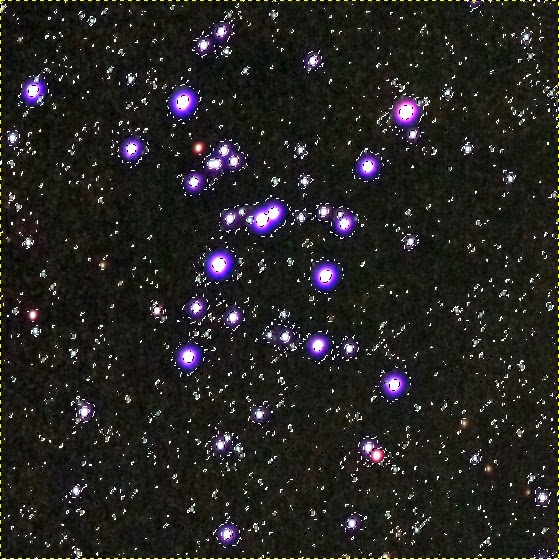
When you are finished selecting the halo colors, your result should look something like the following:

Halos selected with Select by Color Tool.
Click on Selection -> Feather... from the menu. Enter a feather value. I usually use 5px. Click OK.


In GIMP, feathering a selection graduates the transition between effects applied to the selected area and the surrounding image. This prevents harsh transitions that look unnatural.

Now, the final step! Select Colors -> Desaturate... from the menu, and select "Luminosity" from the radio button list:


Click OK, and then press Shift+Ctrl+A to remove the selection. Here is the final result:

Desaturated halos!
The bloated stars may be reduced a bit using a value propagation filter. Immediately after applying the desaturation (while the selection is still active), select Filters -> Distorts -> Value Propagate... Select "More black (smaller value)" from the radio button list. The filter will shrink the bright portions of the selected area. The filter may be repeated by pressing Ctrl+F. Use this feature sparingly, though, as it distorts the image. I do not recommend using it on images of stars surrounded by nebulosity.

A value propagate filter applied to reduce the size of the stars.
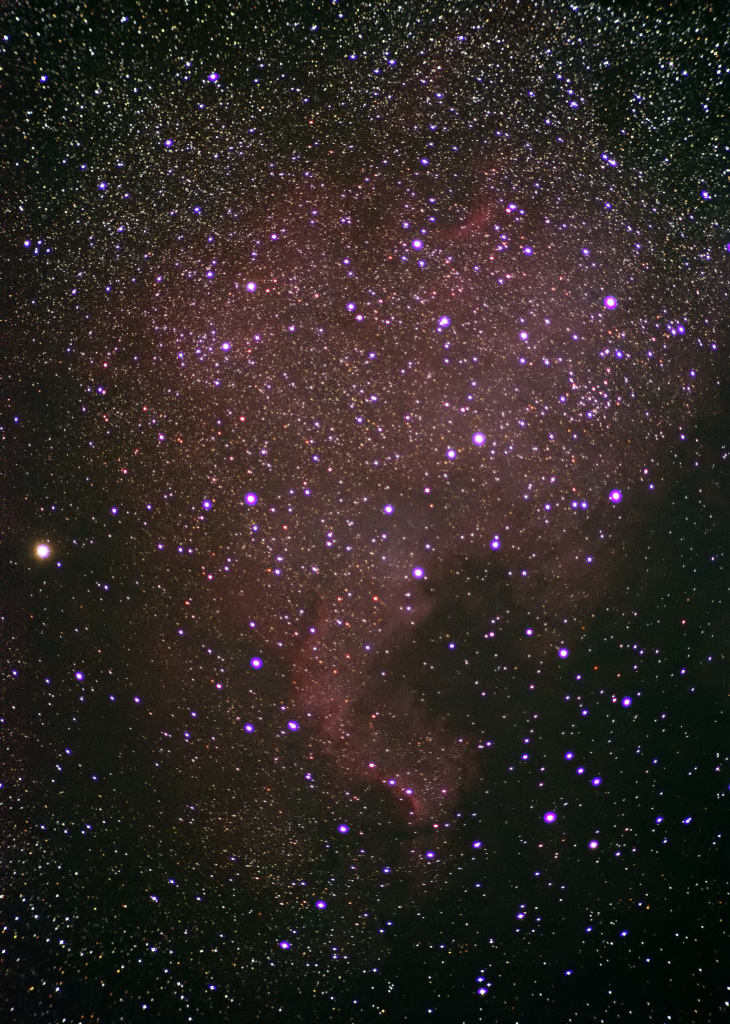
Applying the desaturation looks unnatural when the surrounding area is glowing red with Hydrogen-Alpha emissions. For example, examine this image from one of my posts on the North America Nebula:

North America Nebula (NGC 7000) with purple fringes around the stars.
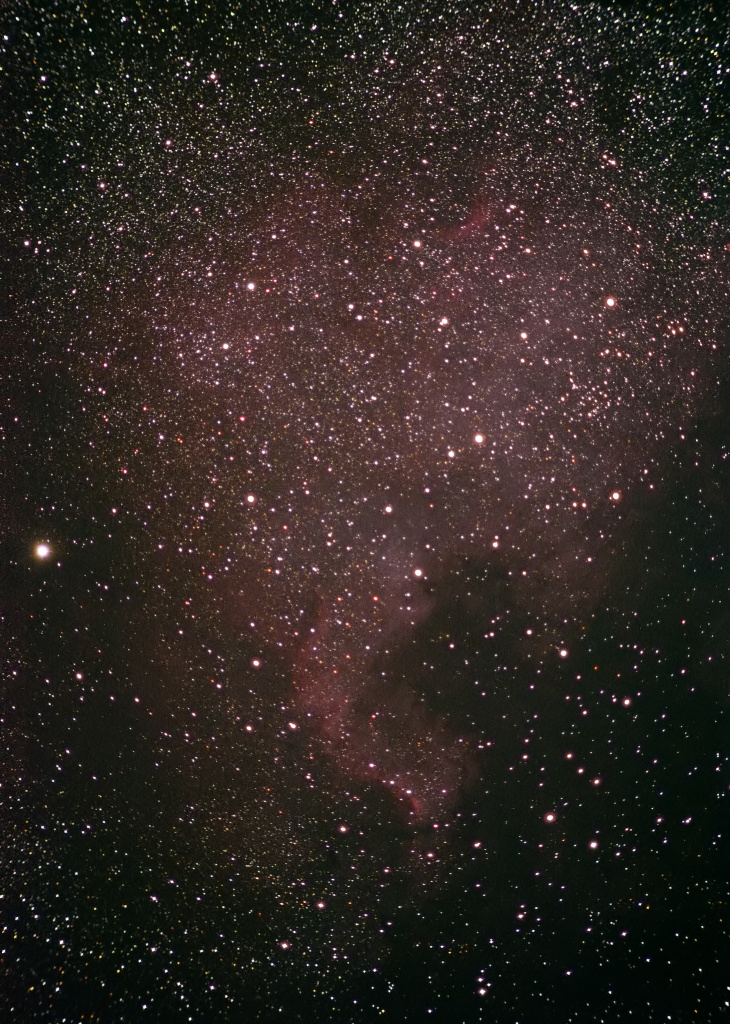
I found it difficult to remove the halos without creating unnaturally bleached "holes" in the nebula. I compromised by adjusting the hue of the halos to make them match the surrounding nebula using Colors -> Colorize... in GIMP, as discussed in this post. Here is the final version:

Colorized halos. The image could be improved by painstakingly manipulating the halo around each star to exactly match the color of the surrounding background nebulosity.

But who has time for that?
I hope these articles provided some useful information on dealing with chromatic aberration in achromat astroimages. If you have any questions, please feel free to post them in the comments section below.

Fixing Halos using a Color Layer

This is the second in a short series of articles on removing the effects of chromatic aberration (CA) from DSLR astroimages. This article describes a process for desaturating (i.e., "whitening") the halos around stars using a color layer in Photoshop or GIMP. Removal of CA from lunar images will also be discussed.

I came across a tutorial on YouTube for removing CA from images using Photoshop. This technique works well for eliminating or reducing purple fringes.  Here is the video:


Nicole points out that the effect can be controlled by adding an image mask. In the case of deep sky astroimages, a mask would be used for applying the layer to individual stars.

This technique works well in Photoshop unless the halos are very bright. I have only had limited success with it in GIMP. This may be due to GIMP's color-depth limitations, or perhaps Photoshop uses a better algorithm. This article will demonstrate the process in GIMP, however, for those who do not have Photoshop.

Here is a partially processed image of the central region of Messier 7, taken with my Canon EOS Rebel T3 (1100D) on the Orion ShortTube 80 achromatic refractor.  The image is a stack of eight 60-second exposures at ISO-800.

This image was color-balanced by adjusting the levels in Paint.NET.
Duplicate the layer (Shift+Ctrl+D) and apply a Gaussian blur (Filters -> Blur -> Gaussian Blur...). Set the radius as you see fit. I used 30 pixels since the halos in this image are fairly large.


The second layer should look something like the following:


Next, set the layer mode to "Color" from the drop-down list in the Layers tab. The halos will be desaturated, but so may the rest of the image. In addition, faint blue halos may still exist around the brighter stars.


The layer mask will confine the effect to the stars. To create a layer mask, right-click on the layer in Layers tab and select "Add Layer Mask..." from the context menu:


The Add Layer Mask dialog will be displayed. Select "Black (full transparency)" from the radio button list and then click Add.


Layer masks are used to limit the amount of a particular layer that is shown or applied. Black areas on the mask cause the underlying layer to show through the current layer. White areas show the current layer. In this case, white areas will show the blurred color layer.

Select the layer mask on the top layer by clicking the black square next to the thumbnail image. There are several ways to edit the layer, but probably the easiest is to select a paint brush and set the foreground color to white. I prefer to use a brush with 100% hardness. The image below demonstrates the effect of the layer and mask. The circled area is the area painted white in the mask. Note how the star lacks the pink ring and that the purple halo is less intense.


This image shows the result of the finished mask:


The halos are still a little too purple for my taste. This can be easily fixed by decreasing the saturation of the layer image. Select the image thumbnail on the top layer and do one of the following:
  • Select Colors -> Desaturate... and then select either Lightness, Luminosity or Average from the dialog. I usually select Luminosity when applying other CA mitigation techniques, but for this method it probably does not matter.
  • Select Colors -> Hue-Saturation... and move the Saturation slider in the dialog all the way to the left.
The result may look something like this:


Granted, this doesn't rival an image obtained by an apochromatic refractor or some kind of reflector telescope, but the result looks a little more natural that it did before processing.

The color layer method works well for lunar images, too. Examine this close-up of a slightly over-exposed image of the Moon. Note the purple fringes around the crater rims and along the lunar limb: 

Moon, April 1, 2012 with purple fringe
And here is the same image with the color layer applied with a 15-pixel Gaussian blur:

The purple fringe has been desaturated!
Bonus image! Here is the Messier 7 image processed in Photoshop using the color layer method. The subs were taken on a bright, moonlit night over the light dome of a nearby town. Not bad for a little achromat refractor, in my opinion!

Wide-field image of Messier 7, processed in Photoshop using the color layer method.
The next article describes my preferred method for removing halos in GIMP.