Showing posts with label articles. Show all posts

Tuesday, March 15, 2022

Eastex Astronomy Has Moved!

I have been on a long hiatus from astronomy due to various factors, but it has been coming back into my mind lately.

I think it's time to retire this old blog, though, so I've created a new one on my personal website.

Future posts will be made at the new Eastex Astronomy blog.

Friday, May 18, 2018

Patrick's Star

Some online friends of my wife registered a star in Patrick's name. It was a very sweet gesture. The registry company sent a folder with a nice certificate, pictured below, describing the star's location. They also included a star chart that highlighted the star and gave its official designation (more on that later). Here is the certificate:


Now keep in mind that none of this is in any way official. The astronomical community is not going to start calling this star "Patrick's Star."

In fact, these registries are a bit misleading. Sure, they create a record for the star name in their database, but it is not officially recognized by any authorities. And there is nothing stopping them or another registry from assigning the star a different name. The company listed above claims that all registered stars are visible to the naked eye. Unfortunately, there are only about 5,000 naked-eye stars, so this practice is not good for business unless each star is assigned to multiple individuals.

Which is OK, as far as I'm concerned, because there is a star in the sky that I will forever think of as Patrick's Star.

That star is officially known as Phi Draconis, 43 Draconis, HD 170000, HIP 89908, among others. It is located in the constellation Draco, which lies between Ursa Minor and Ursa Major. Phi Draconis is actually three separate stars that, at a distance of about 300 light years, appear as a single star to the naked eye.

One clear night recently, I went out and imaged Phi Draconis. The result is below:

Phi Draconis, aka "Patrick's Star" (center).
Patrick's Star circles the North Celestial Pole. From my latitude, the star never sets. I think that's appropriate.

Wednesday, December 6, 2017

The New Scope is Here!

That was amazingly fast! Free ground shipping via FedEx from Astronomics in Oklahoma, and the scope was outside my door in Texas the next day!

Below are some preview pics:


The scope features a metal dust cap (not shown) and machined tube rings attached to a dovetail bar. Note the nifty dust cover over the dual-speed focuser control.


The image above shows the ATR8 focal reducer/field flattener installed. The compression ring on the focuser tube holds it in place very nicely. My Canon T-ring adapter (not shown) attaches to the back of the ATR8 via an included adapter.


The anti-reflective coatings on the lenses appear to be doing their job. There is very little reflection visible compared to the ST80.

Overall, it's a very solid-feeling scope. The focuser is very smooth, and I didn't detect any flexure.

I plan on making a Bahtinov mask for it tonight, and will probably try to figure out a way to attach a view finder tomorrow.

Now, if only the clouds will go away...

Sunday, December 3, 2017

I Made a Decision

In the previous post I expressed my frustration with not finding time and energy for astronomy. Work and household chores have taken it out of me, but I have decided that I am going to make a greater effort to keep on going. It won't be easy, and I don't expect to be out there observing and imaging like I was during the Golden Age of 2009/2010.

Still, there is new incentive...

...on the way...

...in the mail...

...coming to my house.

Yes, I bought a new telescope! It's nothing fancy, but it is a full step up from my current primary imaging scope, the Orion ShortTube 80.

The new scope is an Astro-Tech AT72EDII. It has a 72mm aperture and 430mm focal length, which gives it a focal ratio of f/6 (slower than my ST80, which is f/5). The objective is an air-spaced doublet made with Ohara glass, with an FPL-53 lens to reduce false color (from chromatic aberration). It has a dual-speed rack-and-pinion focuser and a built-in camera angle adjuster.

I also ordered an Astro-Tech ATR8 focal reducer/field flattener. This reduces the focal ratio of the scope from f/6 to f/4.8. The field of view is also increased, which will be great for some of those large targets that I like to image.

Speaking of targets, I now have an excuse to re-image everything that I have imaged before! It's a case where everything old is new again. I am looking forward to this because now I can apply my new image processing skills to (hopefully) much-improved images.

The next big purchase will be a new mount. The Vixen Super Polaris is adequate for now. It produces good 3-minute subs consistently. Longer exposures tend to overexpose in my light polluted sky, so a CCD camera will be the next big item after the mount.

But these purchases are still a long way off. I have a great deal of difficulty buying things that don't have a practical purpose of some kind. It's not that I'm cheap, but there are tons of better things that the money can go toward. For example, I don't mind spending a good chunk of change on a good computer. But, on the other hand...I need a break. I need something fun to do. All work and no play is driving has driven me out of my mind. So, I'm going to make a better effort to do some fun stuff--and not just astronomy.

Anyway, the new scope will be here soon, and I've already lined up my first few targets!

Thursday, February 11, 2016

Globe at Night, Part 2

My son and I collected some more sky brightness measurements on the night of February 9, 2016 in the vicinity of the small town of Bedias, Texas. Bedias is located in a rural area, surrounded by flat pastureland. There are many areas with views down to the horizon, or nearly so. Regretfully, there are several light domes that spoil what would otherwise be a spectacular view. Still, the skies there are fairly dark, at least at zenith.

The following two images were taken with the same equipment and settings as those in the previous post.

For reference, here is an image of the Orion constellation taken from my house the same night as the Bedias trip:

Orion at the ObservaRory
This image was taken on a county road near the western edge of Walker County, just a few miles east of Bedias.

A few miles east of Bedias, Texas. The red line to the left was from a passing aircraft.
The light dome of Houston, Texas and surrounding cities dominated the sky to the southeast. The light dome of Huntsville was visible to the east, and Madisonville's light dome was barely visible to the north.

While not as dark overall as the sky near Weldon, the view was very nice, with many faint stars visible to the naked eye at zenith, and the Milky Way clearly visible.

Thursday, February 4, 2016

Globe at Night

On the night of February 3, 2016, my son and I went on a little expedition to collect sky brightness measurements for the Globe at Night campaign. Globe at Night is a citizen-science project for raising public awareness of the effects of light pollution. Several times a year they host campaigns where participants observe a selected constellation and report how it appears in relation to a series of magnitude charts.

Our trip took us a few miles north of our house where, according to DarkSiteFinder.com, the sky brightness is rated around 3 on the Bortle scale.

The two images illustrate the difference in sky brightness between the ObservaRory (my house) and a location a little north of the town of Weldon, Texas. Both are 30-second exposures taken with a Canon EOS Rebel T3 with a 18-55mm zoom lens at 18mm (f/3.5) at ISO-1600. Both images are unprocessed, except to reduce their sizes.

Orion at the ObservaRory, about a mile north of the city limit of Huntsville, Texas.
The sky here is around 4.5 on the Bortle scale.

Orion north of Weldon, TX. The sky in this region measures 3 on the Bortle scale. Some of the light dome of Huntsville and a nearby prison unit are visible to the lower-left. Fainter objects, such as the Rosette Nebula, that are washed out by the skyglow in the previous photo are visible here.
To me, the most striking thing about the second image is the darkness of the background sky--there is no nauseating soup of mercury and sodium lights washing out the stars.

To learn more about light pollution and its effects on the environment, health, and energy consumption, I suggest the following links:

Thursday, March 5, 2015

The Five Stages of Astronomical Grief

The weather pattern these past few months has not been conducive to viewing or astrophotography. As I mentioned in a previous post, when the sky hasn't been cloudy the humidity has been high. Throw in a busy schedule and an intense need for sleep, and I haven't gone out much lately.

And it appears that I am not alone. A LOT of folks have been complaining about the clouds.

A recent post on a forum on which I participate got me to thinking that there may be a relationship between grief and the feeling we amateur astronomers get when we can't go out and play for long periods of time. So, I mapped out the stages of grieving in relation to the Cloudy Night Blues. After all, I need SOMETHING to do that's at least moderately astronomy-related.

Stage 1: Denial

Maybe the weather will improve. Astronomers have to hold onto whatever tenuous shreds of hope they can grasp. Hey, sometimes the weather forecasters get it wrong! But all too often they are correct or, worse, they predict clear skies and it clouds up again. All of this eventually leads to...

Stage 2: Anger

Why won't these !#@$=! clouds go away? Our inability to control the weather, coupled with an intense urge to do astronomy stuff often results in increasing frustration. Frustration can sometimes blind our reasoning. OF COURSE there are valid reasons for clouds, and our opinion of and dislike of them are of no consequence to Mother Nature. The cycle of frustration, impotent rage, and meteorological ambivalence to our condition brings us to the point of...

Stage 3: Bargaining

Maybe I can view between the clouds, or, God, if you make the clouds go away then I'll [insert promise you will never be able to keep here]. In this stage, we may attempt to adapt to our circumstances, or we may become delusional...or both. Either way, those who reach Stage 3 are well on their way to potential emotional disaster if the weather does not improve. There is no magical cure for cloudy weather, and often the cycle of clear-to-clouds-to-clear takes several days or weeks, depending on the season and local climate. When we realize that our best efforts to cope with or appeal to nature's good graces are useless, we experience...

Stage 4: Depression

I'll never see the stars again. What is the point of all this? Prolonged suffering generally gives way to despair. Many torture victims describe a point at which their torment overwhelms their convictions and they give in. Only with clouds, giving in doesn't make them go away, so then there must be...

Stage 5: Acceptance

I need a new hobby, or, I will be patient, then when the time is right I'm taking a personal day from work and spending all night outside. Nothing lasts forever. Not even clouds. Well, maybe they do in some places. At any rate, just accept the clouds for what they are. Or don't. Either way, there's nothing you can do about it.

Tuesday, July 15, 2014

Fixing Halos using Desaturation

This is the third and final article in a short series on removing the effects of chromatic aberration (CA) from DSLR astroimages. This article describes a process for desaturating (i.e., "whitening") the halos around stars using the Select by Color Tool in GIMP. In addition, a technique for "shrinking" bloated stars will be discussed.

The Select by Color Tool in GIMP selects all pixels in the image that match a selected color within a given threshold. Since there are no naturally occurring astronomical objects that exclusively produce the hues present in CA halos, this tool is handy for selecting those colors for processing.

Open the image in GIMP and zoom in to one of the brighter stars, as in the image below.
  1. Select the "Select by Color Tool" by clicking the icon  or by pressing Shift+O.
  2. Click the "Add to current selection" icon in the Tools tab (see the illustration below). It is important that this feature remain turned on during the selection process.
  3. Set the threshold. The threshold sets the sensitivity for selecting the colors. The higher the threshold the more colors will be selected. In other words, if the threshold is low and a particular hue of purple is clicked on in the image, then only pixels that are very close to that hue will be selected. A larger threshold will cause a wider range of brightness and hues to be selected. The exact method for selecting colors is determined by the "Select by" setting in the Tools tab. This is set to "Composite" by default.
  4. Click on the the pink, blue and purple halo colors around one of the stars. Start with the brighter parts of a halo and work to the fainter portions. You may need to select parts of the halos around other stars as well to get full coverage.

Zoom out occasionally to check the progress of your work. If too large of an area is selected, then press Ctrl+Z to undo the last selection(s). Adjust the threshold as needed to restrict the selected areas. Some of the fainter blue and purple colors may closely match the colors of parts of reflection nebulae, so the threshold may need to be lowered as you work your way into the fainter parts of the halos.

If you find that you cannot proceed selecting the fainter parts of the halos without selecting regions that you do not wish to modify, switch to the Fuzzy Select Tool () and select each of the remaining faint areas. Make sure that "Add to current selection" is selected in the Tools tab after switching to the Fuzzy Select Tool.

When you are finished selecting the halo colors, your result should look something like the following:

Halos selected with Select by Color Tool.
Click on Selection -> Feather... from the menu. Enter a feather value. I usually use 5px. Click OK.


In GIMP, feathering a selection graduates the transition between effects applied to the selected area and the surrounding image. This prevents harsh transitions that look unnatural.

Now, the final step! Select Colors -> Desaturate... from the menu, and select "Luminosity" from the radio button list:


Click OK, and then press Shift+Ctrl+A to remove the selection. Here is the final result:

Desaturated halos!
The bloated stars may be reduced a bit using a value propagation filter. Immediately after applying the desaturation (while the selection is still active), select Filters -> Distorts -> Value Propagate... Select "More black (smaller value)" from the radio button list. The filter will shrink the bright portions of the selected area. The filter may be repeated by pressing Ctrl+F. Use this feature sparingly, though, as it distorts the image. I do not recommend using it on images of stars surrounded by nebulosity.

A value propagate filter applied to reduce the size of the stars.
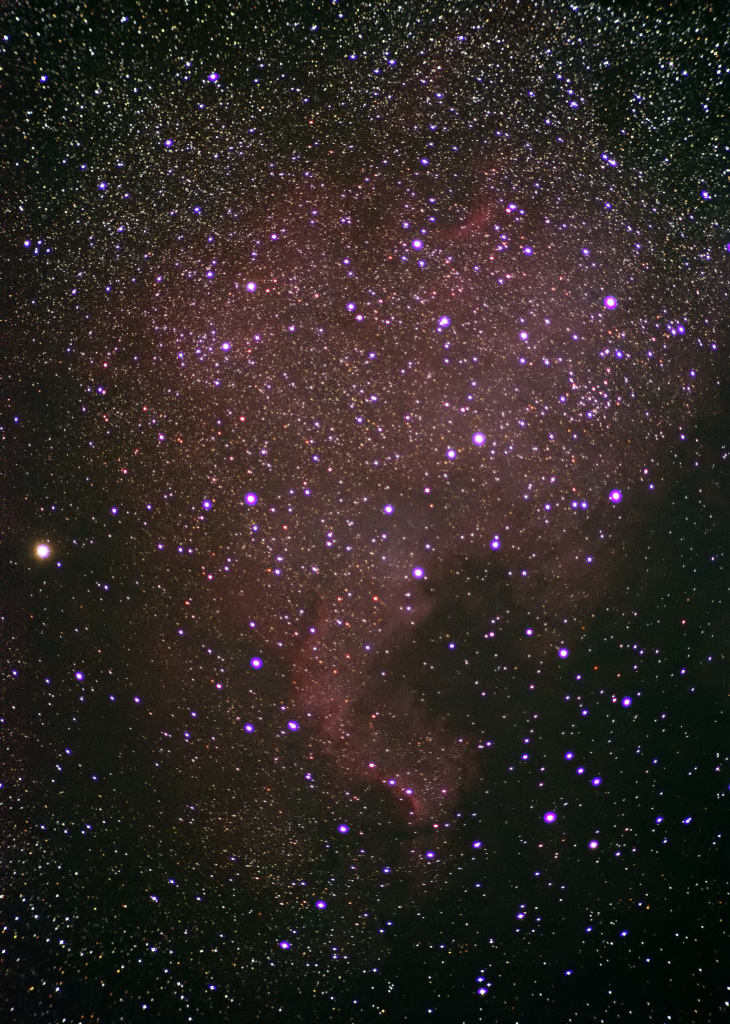
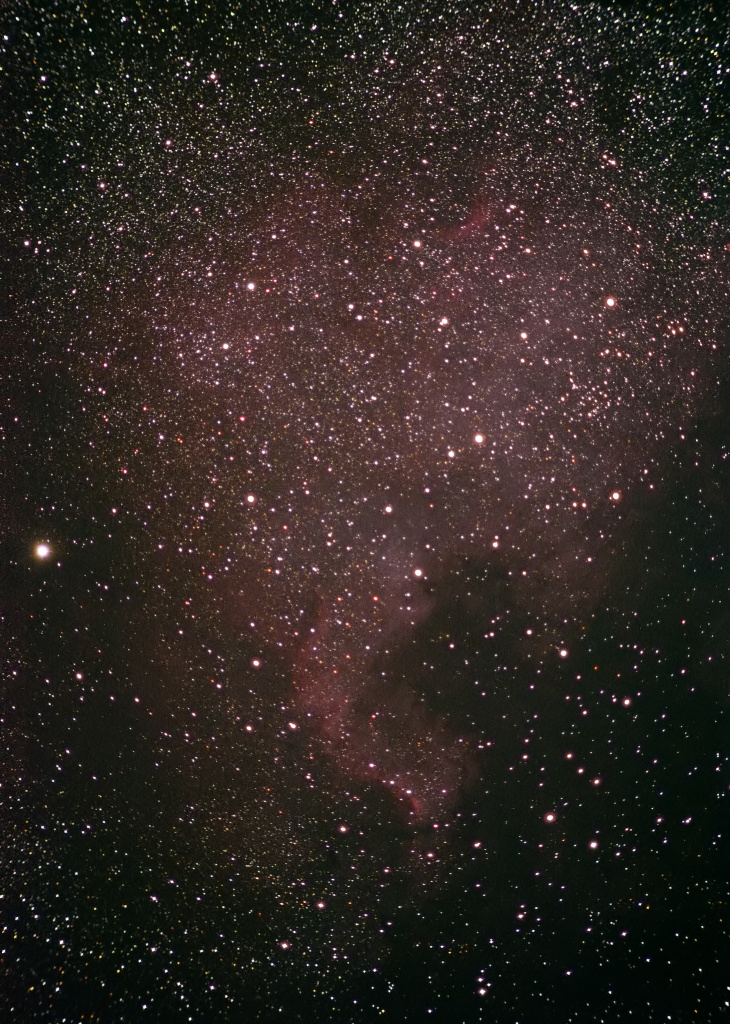
Applying the desaturation looks unnatural when the surrounding area is glowing red with Hydrogen-Alpha emissions. For example, examine this image from one of my posts on the North America Nebula:

North America Nebula (NGC 7000) with purple fringes around the stars.
I found it difficult to remove the halos without creating unnaturally bleached "holes" in the nebula. I compromised by adjusting the hue of the halos to make them match the surrounding nebula using Colors -> Colorize... in GIMP, as discussed in this post. Here is the final version:

Colorized halos. The image could be improved by painstakingly manipulating the halo around each star to exactly match the color of the surrounding background nebulosity.

But who has time for that?
I hope these articles provided some useful information on dealing with chromatic aberration in achromat astroimages. If you have any questions, please feel free to post them in the comments section below.

Fixing Halos using a Color Layer

This is the second in a short series of articles on removing the effects of chromatic aberration (CA) from DSLR astroimages. This article describes a process for desaturating (i.e., "whitening") the halos around stars using a color layer in Photoshop or GIMP. Removal of CA from lunar images will also be discussed.

I came across a tutorial on YouTube for removing CA from images using Photoshop. This technique works well for eliminating or reducing purple fringes.  Here is the video:


Nicole points out that the effect can be controlled by adding an image mask. In the case of deep sky astroimages, a mask would be used for applying the layer to individual stars.

This technique works well in Photoshop unless the halos are very bright. I have only had limited success with it in GIMP. This may be due to GIMP's color-depth limitations, or perhaps Photoshop uses a better algorithm. This article will demonstrate the process in GIMP, however, for those who do not have Photoshop.

Here is a partially processed image of the central region of Messier 7, taken with my Canon EOS Rebel T3 (1100D) on the Orion ShortTube 80 achromatic refractor.  The image is a stack of eight 60-second exposures at ISO-800.

This image was color-balanced by adjusting the levels in Paint.NET.
Duplicate the layer (Shift+Ctrl+D) and apply a Gaussian blur (Filters -> Blur -> Gaussian Blur...). Set the radius as you see fit. I used 30 pixels since the halos in this image are fairly large.


The second layer should look something like the following:


Next, set the layer mode to "Color" from the drop-down list in the Layers tab. The halos will be desaturated, but so may the rest of the image. In addition, faint blue halos may still exist around the brighter stars.


The layer mask will confine the effect to the stars. To create a layer mask, right-click on the layer in Layers tab and select "Add Layer Mask..." from the context menu:


The Add Layer Mask dialog will be displayed. Select "Black (full transparency)" from the radio button list and then click Add.


Layer masks are used to limit the amount of a particular layer that is shown or applied. Black areas on the mask cause the underlying layer to show through the current layer. White areas show the current layer. In this case, white areas will show the blurred color layer.

Select the layer mask on the top layer by clicking the black square next to the thumbnail image. There are several ways to edit the layer, but probably the easiest is to select a paint brush and set the foreground color to white. I prefer to use a brush with 100% hardness. The image below demonstrates the effect of the layer and mask. The circled area is the area painted white in the mask. Note how the star lacks the pink ring and that the purple halo is less intense.


This image shows the result of the finished mask:


The halos are still a little too purple for my taste. This can be easily fixed by decreasing the saturation of the layer image. Select the image thumbnail on the top layer and do one of the following:
  • Select Colors -> Desaturate... and then select either Lightness, Luminosity or Average from the dialog. I usually select Luminosity when applying other CA mitigation techniques, but for this method it probably does not matter.
  • Select Colors -> Hue-Saturation... and move the Saturation slider in the dialog all the way to the left.
The result may look something like this:


Granted, this doesn't rival an image obtained by an apochromatic refractor or some kind of reflector telescope, but the result looks a little more natural that it did before processing.

The color layer method works well for lunar images, too. Examine this close-up of a slightly over-exposed image of the Moon. Note the purple fringes around the crater rims and along the lunar limb: 

Moon, April 1, 2012 with purple fringe
And here is the same image with the color layer applied with a 15-pixel Gaussian blur:

The purple fringe has been desaturated!
Bonus image! Here is the Messier 7 image processed in Photoshop using the color layer method. The subs were taken on a bright, moonlit night over the light dome of a nearby town. Not bad for a little achromat refractor, in my opinion!

Wide-field image of Messier 7, processed in Photoshop using the color layer method.
The next article describes my preferred method for removing halos in GIMP.

Fixing Halos

This is the first in a short series of articles on dealing with chromatic aberration (CA) in DSLR astroimages. The cause of CA will be discussed here, along with a general overview of how to fix it. Other posts in the series will describe image processing techniques in detail.

Chromatic aberration has been a bane of astronomers ever since Galileo pointed his homemade refracting telescope toward the heavens over 400 years ago. Put simply, CA is caused by a phenomenon called "dispersion," which is the effect of different wavelengths (colors) of light traveling at different speeds through a lens. Each wavelength comes to focus at a different point. This blurs images and produces red, blue and purple halos around bright stars in astroimages.

Most achromatic refractors are intended for visual use, and typically show little or no CA to the naked eye. In long exposure astroimages, however, the effect can be quite severe. So, unless you have the money to shell out for a more expensive telescope that corrects for this problem at the optical level, you will have to mitigate the effects of CA in post-processing.

Note that I wrote "mitigate." There is really no way to completely remove halos without destroying parts of the image.

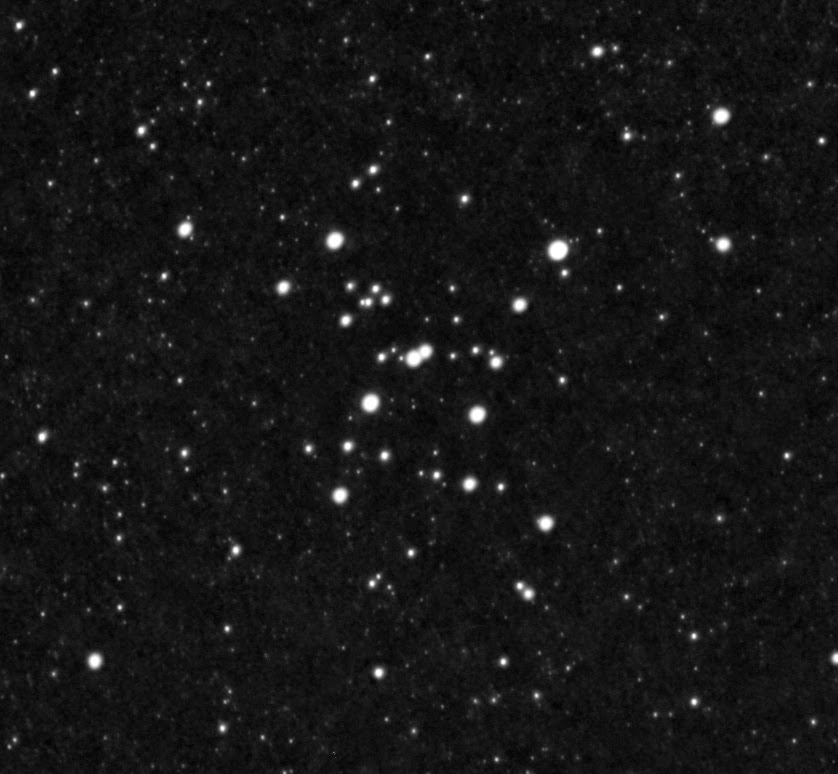
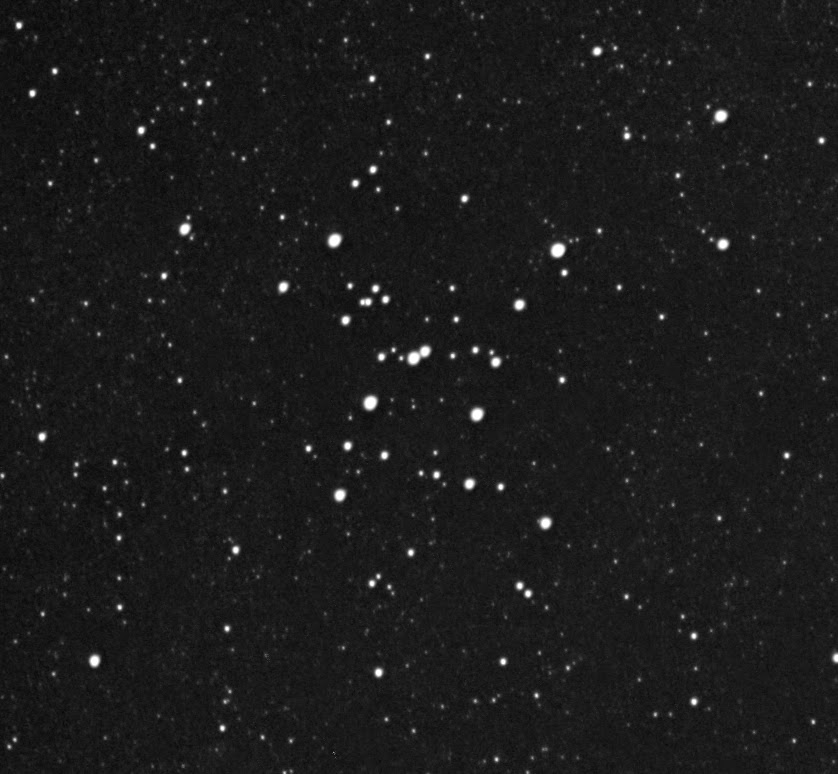
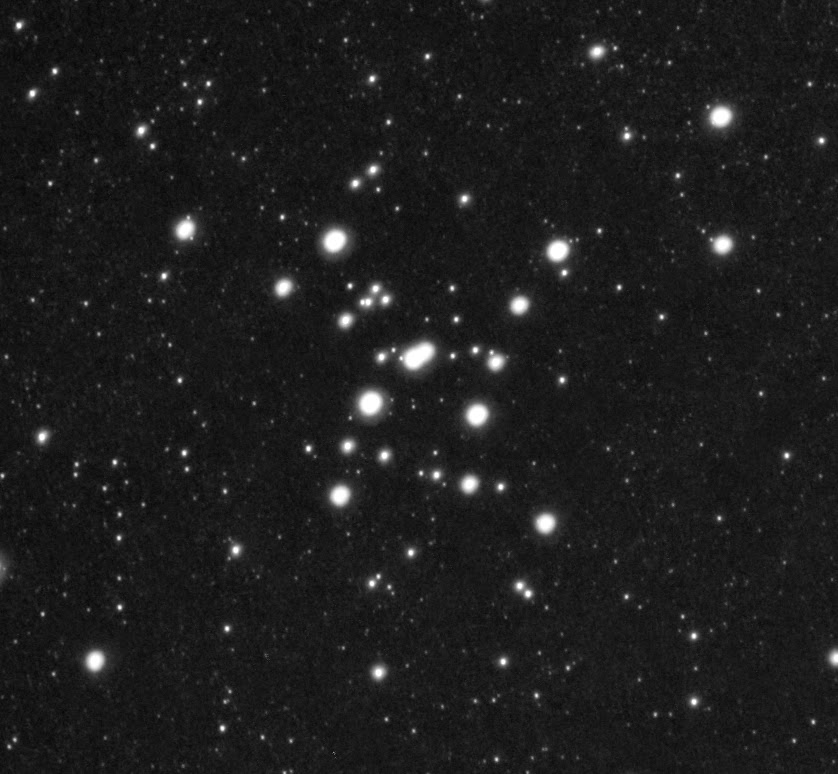
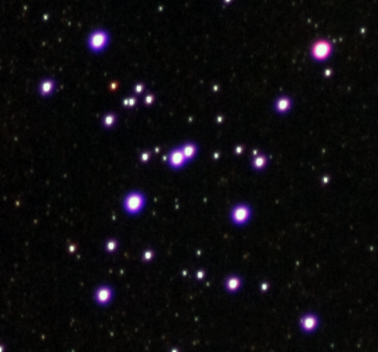
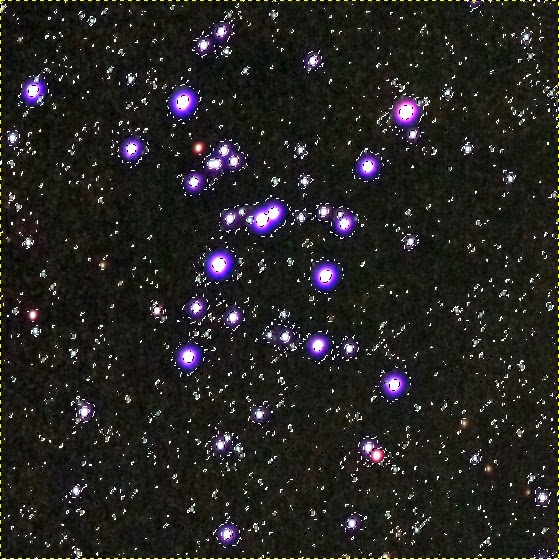
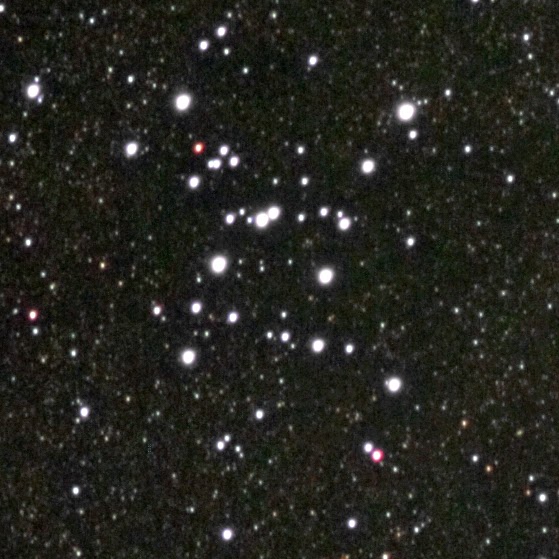
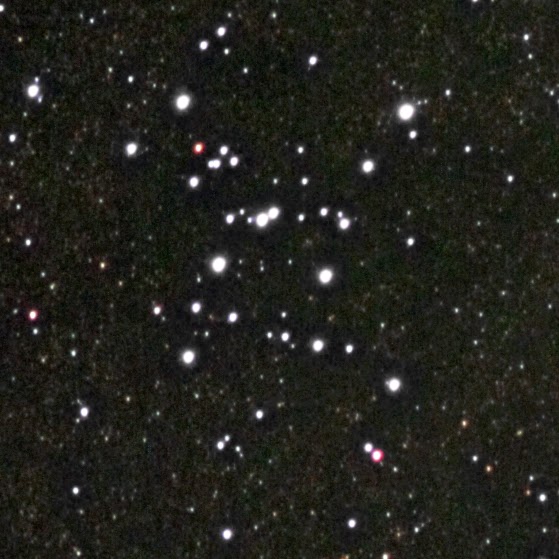
To further illustrate the problem, examine the following set of images taken with my Canon EOS Rebel T3 on the Orion ShortTube 80. Focus was achieved using a Bahtinov mask. The first is a color image of the central region of Messier 7. The images that follow are the red, green and blue color channels for that image.

Messier 7, full-color.
Red Channel
Green Channel
Blue Channel.

Note how the stars look fuzzy and bloated in the red and blue channel images, but sharp and in focus in the green channel image. The center of focus in an achromatic refractor is in the green part of the spectrum, so both red and blue are slightly out of focus when the image from the camera is in focus. Since the focus of each of the three colors is significantly different, the stars do not line up perfectly when the channels are combined. This results in the halos.

But the halos are not the only problem that results from CA. Another problem is loss of image data caused by bloated stars overlapping or overwhelming other dimmer stars or features. In addition, the color image as a whole appears slightly out of focus, which further obscures detail.

So, what do we do to fix it?

The short answer is: nothing. This is the result of the physics of optics, and you can't go against nature.

The long answer is that there are some things that can help reduce the effect or at least mask it.

Shooting with filters helps. Typically, I use a light pollution filter to remove the effects of the mercury and sodium vapor lamps from the nearby towns. This reduces CA slightly by filtering out some of the blue and violet light, but not enough to be considered a solution to the problem, in my opinion.

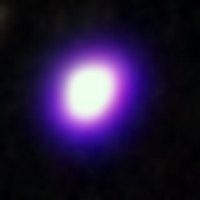
As I mentioned in the post on the July 2014 Moon/Saturn conjunction, a #15 yellow filter helps to filter out some of the violet and red color. The two images below demonstrate the effect of the yellow filter. Each is a magnified view of the same star in Messier 7, color-corrected in GIMP. The first was taken with a regular light pollution filter, and the second with a yellow filter. Note that the halo in the first picture faintly extends to the edges of the image, but does not in the second.

(The brightness of your monitor may need to be adjusted to see all of the details.)
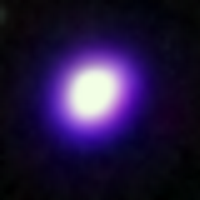
Star with Light Pollution Filter
Star with #15 Yellow Filter
Here are comparison images of Messier 7. The image made with the yellow filter yielded a little more detail as it did not filter out as many of the fainter stars.
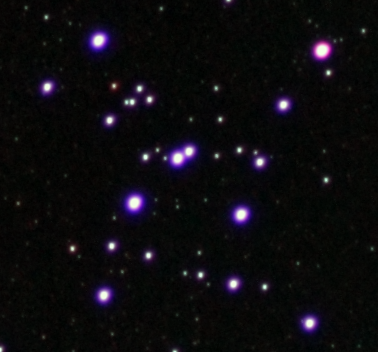
Messier 7 with Light Pollution Filter 

Messier 7 with #15 Yellow Filter
The filter helped, but it did not eliminate the halos. The next article describes a technique for reducing the color fringing using Photoshop or GIMP.

Sunday, September 4, 2011

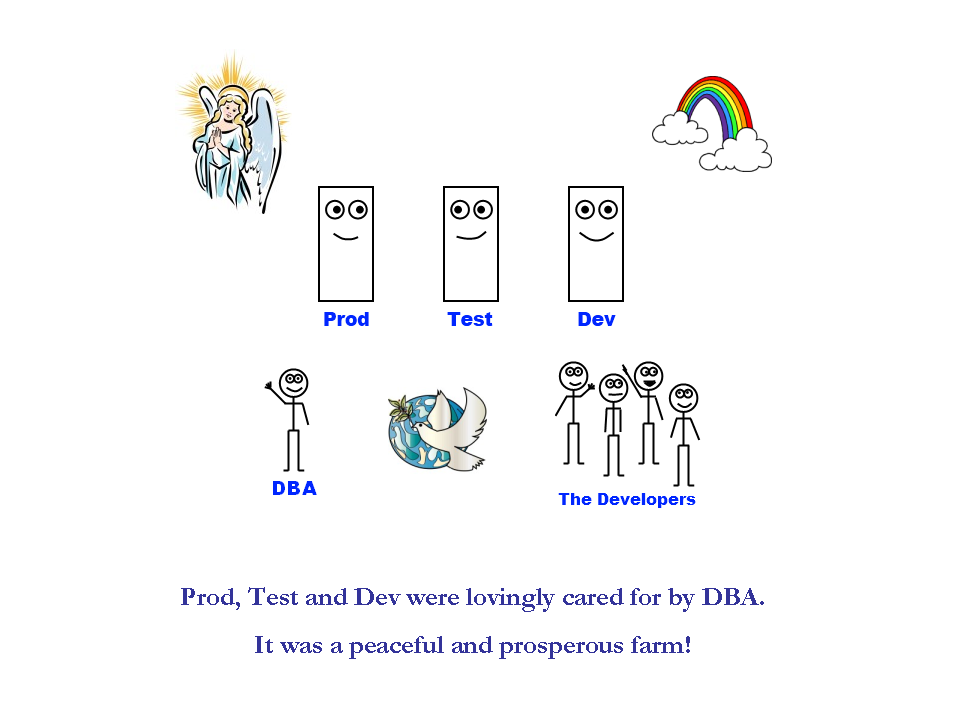
The Server Farm

I was a Database Administrator (DBA) in my previous job. We were a highly specialized shop in most respects, which means that different individuals handled specific tasks. For example, as a DBA I was not allowed to set up virtual servers or allocate resources to existing servers, and I had limited authority to make configuration changes at the operating system level. As a result, I sometimes found it difficult to guarantee system integrity. This lead to a lot of personal stress, so as a stress-relief exercise I made light of a particular series of events that occurred during my last year of employment. I shared this story with my coworkers in bits and pieces as the events unfolded and they found it entertaining, so I thought I'd share it with the world at large.

I've included some additional commentary to help explain the circumstances a little better.


Mainframe had a database that was one of the primary sources of information used by my employer.  Directly accessing the mainframe for daily reports was impractical because of performance issues.  I used the DRDA gateway to copy the relevant data into the Prod database on a regular basis and ran the reports from there.

The conversation between me and the Network Person went something like this:

NP:  "Are you using Test?"
Me:  "No.  I am not doing any testing today.  Do you need to take it off-line?"
NP:  "Yes."

I interpreted this conversation to mean "We, the Network People, need to reboot Test because we are using it for some nefarious purpose of our own, such as World Domination."  It was a perfectly reasonable assumption since both the Network People and I used this particular server for a variety of testing purposes.  What the Network Person really meant was, "We, the Network People, are going to reformat Test's hard drive and turn this machine into a menial Zombie Slave."


Reports was brought on-line for a single user who did a lot of complex queries and reporting.  It was determined by our administration that this individual should have a separate database in which to work.  Reports was supposed to be simple:  one machine would have all of the necessary tools, including the database, running in an easy-to-use GUI operating system.


I never did find out why Reports and Mainframe couldn't get along.


Most of Dev was set up to parallel Prod, so it was a fairly easy operation to "graft" Dev to Prod. Still, it made me look like a Genius Miracle Worker to most of my peers. (Those who didn't think I was a Genius Miracle Worker probably didn't understand the setup, anyway.)


Starting at this point, Reports was only used for hosting the database. The reporting tools were installed on a different server.

There was a long period of time between the slide above and the slide below. We had to coast along like this for a while because other projects had to take precedence.


Certain batch processes on the mainframe would lock entire tables, causing Prod's jobs that read those tables to time out. The scheduling of the mainframe batch processes seemed to change unpredictably.


Well, that's the end as far as I'm concerned. My successor will need to pick up the standard and carry it forward into the battle now. I wish him or her all the best.